


Quick Answer
To update AirPods firmware, place them in the case near your unlocked iPhone connected to Wi-Fi, open Bluetooth settings, and wait — Apple pushes updates automatically in the background. There’s no manual button. Check your current version under Settings > General > About > your AirPods name.
Your AirPods might be running software that’s over a year old, and you’d never know it. Unlike your iPhone, AirPods don’t show a red notification badge screaming “update me.” That’s exactly why so many people ask how to update AirPods firmware — because Apple hides the entire process behind the scenes.
In this guide, you’ll learn exactly how firmware updates happen, how to check your current version, what to do when updates don’t install, and the small habits that keep your AirPods running at their best. By the end, you won’t just know how to update AirPods firmware — you’ll understand why it’s been quietly affecting your battery life and connection quality this whole time.
What Is AirPods Firmware and Why It Matters Today
Firmware is the tiny piece of software baked into your AirPods’ internal chip. It controls everything from Bluetooth pairing speed to noise cancellation processing and battery management.
Here’s what nobody tells you: firmware updates aren’t optional extras. They often fix real problems — dropped connections, delayed audio, weak battery reporting, even microphone glitches during calls. Apple has quietly shipped dozens of firmware versions since AirPods launched, each one patching something specific.
Most people assume their AirPods “just work” and never think about software running inside earbuds. That mindset is exactly why so many users struggle with random disconnects for months, not realizing a firmware update fixed that exact bug two updates ago.
How AirPods Firmware Updates Actually Work
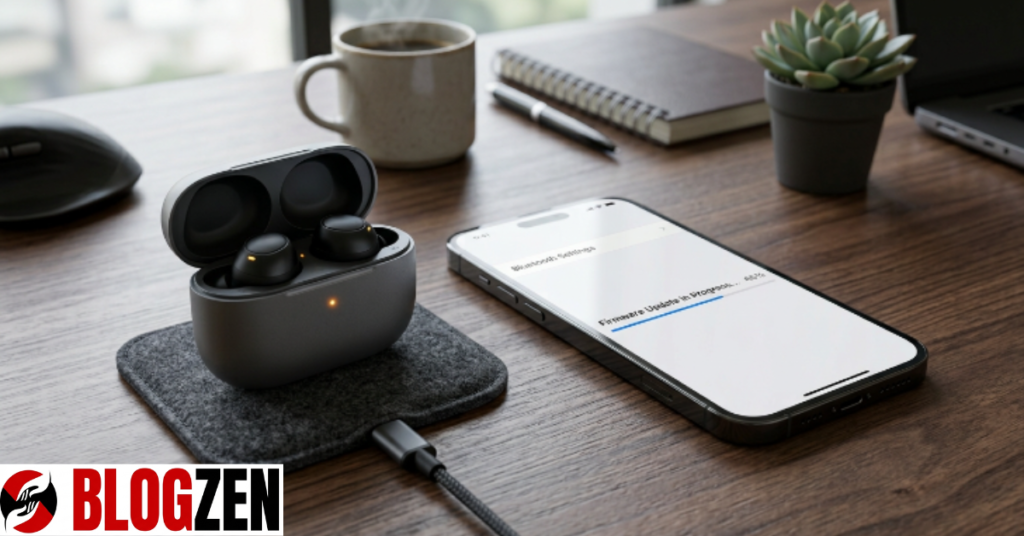
Let me explain why this process feels so mysterious — because Apple designed it that way. There’s no app, no settings toggle, no “Check for Update” button anywhere on your iPhone.
Instead, updates install automatically when three conditions line up: your AirPods are in the case, the case is near your iPhone, and your phone is connected to Wi-Fi with Bluetooth on. Apple’s servers push the update quietly, usually overnight, without asking permission.
Think of it this way: your AirPods update like a sleeping app refreshing in the background. You won’t see a progress bar. You’ll just wake up one day with better performance and no idea why.
READ MORE: How to Find the Best Wireless Earbuds Under Budget The Smart Buyer’s Guide
Checking Your Current Firmware Version
- Open your iPhone’s Settings app
- Tap General, then About
- Scroll down and tap your AirPods name
- Note the version number listed under “Firmware Version”
Compare that number against Apple’s support page to see if you’re behind.
Common Mistakes People Make With AirPods Updates
The truth is, most “update problems” are actually proximity problems. People keep their AirPods in a backpack across the room while expecting instant updates — that’s not how it works.
Another mistake: closing the case too quickly after connecting. The update needs the case lid open and AirPods actually seated in the charging slots, not just nearby.
A third common error is disabling automatic updates system-wide through restrictions or parental controls without realizing it silently blocks AirPods firmware too. This one catches families and managed devices constantly.
Expert Tips and Proven Strategies to Force an Update
Most people get this completely wrong — they assume there’s nothing they can actively do. There actually is a sequence that speeds things up significantly.
Pro Tip: Put your AirPods in the case, leave the lid open, place them within 1 foot of your unlocked iPhone, and keep both connected to strong Wi-Fi for at least 30 minutes. This dramatically increases update speed.
Charging overnight next to your phone remains the single most reliable trigger. Apple’s servers check for eligible devices in these idle windows more aggressively than during active use.
Real-World Example: A Firmware Fix in Action
Here’s a scenario that plays out constantly. A user with AirPods Pro noticed constant left-earbud disconnects during calls, blaming it on a hardware defect.
After checking firmware, they discovered a version nearly 8 months old. Following the proximity method above overnight, the update installed, and the disconnect issue disappeared completely within two days.
This isn’t unusual — Apple’s release notes frequently mention Bluetooth stability improvements, confirming that outdated firmware causes exactly these symptoms.
[External Link Suggestion: Apple’s official AirPods firmware update support page]
Step-by-Step Guide to Updating AirPods Firmware
Follow this exact sequence for the best results:
- Charge your AirPods to at least 20%
- Place them in the case with the lid open
- Keep your iPhone unlocked and within 12 inches
- Confirm Wi-Fi and Bluetooth are both active
- Wait 15–30 minutes without moving the devices
- Check Settings > General > About to confirm the new version
Repeat overnight if the version hasn’t changed after the first attempt.
Myths vs Facts About AirPods Firmware
Let’s clear up confusion around this once and for all.
| Myth | Fact |
|---|---|
| You can manually trigger updates | Apple controls timing automatically |
| Firmware updates need cellular data | Wi-Fi is required, not cellular |
| Older firmware means broken AirPods | It usually just means missing improvements |
| Resetting AirPods forces an update | Resetting only clears pairing data |
The biggest myth is that firmware doesn’t matter for older AirPods models — in reality, older models often need updates more, since Apple prioritizes fixing legacy bugs.
What to Avoid When Updating AirPods
Never force a factory reset expecting it to trigger an update — it won’t, and you’ll lose all paired devices unnecessarily.
Avoid updating during a Wi-Fi network switch (like moving from home to office networks), since interrupted downloads can leave AirPods in limbo. Also skip using low-power mode on your iPhone during the update window — it throttles background processes needed for the transfer.
READ MORE: Best Wireless Earbuds Under 200 Dollars 2024 Expert Buyer’s Guide
Conclusion
Updating AirPods firmware isn’t complicated, but it is invisible — and that’s exactly why most people never do it right. Keep your AirPods near an unlocked, Wi-Fi-connected iPhone overnight, check your version regularly, and don’t blame hardware for what’s really a software problem.
Try the overnight method tonight and check your firmware version tomorrow morning. Got AirPods that still disconnect randomly? Drop your firmware version in the comments — chances are, an update already fixed it for someone else.
Your AirPods are smarter than you think. They just needed the update you never knew to ask for.
FAQs
How do I know if my AirPods need a firmware update?
Check Settings > General > About, tap your AirPods, and compare the listed version to Apple’s latest release notes online. If your version number is older than the current listed release, an update is available. Random disconnects, weak noise cancellation, or call audio glitches are common signs you’re overdue.
Can I update AirPods firmware without an iPhone?
Firmware updates require an Apple device — iPhone, iPad, or Mac — since Android and Windows don’t support Apple’s proprietary update protocol. If you primarily use Android, borrowing an iPhone briefly is the only reliable workaround. There’s currently no official cross-platform update method.
Why won’t my AirPods firmware update?
Usually it’s proximity, network, or power settings blocking the background process. Try these fixes:
- Move AirPods within 12 inches of your phone
- Switch to a stable Wi-Fi network
- Disable Low Power Mode temporarily
- Leave the case open and charging overnight
Does updating AirPods firmware delete my settings?
No, firmware updates don’t erase pairing history, name settings, or ear detection preferences. Only a full factory reset removes those settings. Your customizations remain untouched throughout the entire update process.
How long does an AirPods firmware update take?
Most updates complete within 20–30 minutes under ideal conditions, though some take several hours depending on network speed. Leaving AirPods charging overnight guarantees enough time for even slower downloads to finish successfully.
Is it safe to use AirPods during a firmware update?
No, using AirPods interrupts the download and can leave firmware in a partially updated, unstable state. Always let the update finish completely before reconnecting for calls or music. Interrupted updates are a leading cause of pairing glitches afterward. VISIT BLOGZEN
